
Free Test Server
We have created the ultimate solution for common tasks in the life of every Internet user, including your need for:
- an additional desktop
- a virtual browser for opening any websites outside your personal PC
- a server for testing a suspicious program
- checking your own software and scripts in a virtual environment
- testing console commands
- checking the availability of your website or application
- testing websites, applications, and programs in a virtual environment
- launching a social network, messenger, or website in full incognito mode
- a way to delete the system32 folder without health risks
And regardless of how complex or non-standard the tasks you encounter in your life may be, we have found the perfect solution for each of them — a completely free, private, fast, and convenient virtual server, without registration, available in your browser from any device and at any time. We created Terminator — terminator.aeza.net.
1. Example of using the test server on Windows OS.
1.1. Open a browser and follow the link: terminator.aeza.net
1.2. After following the link, select Windows OS and complete the captcha.
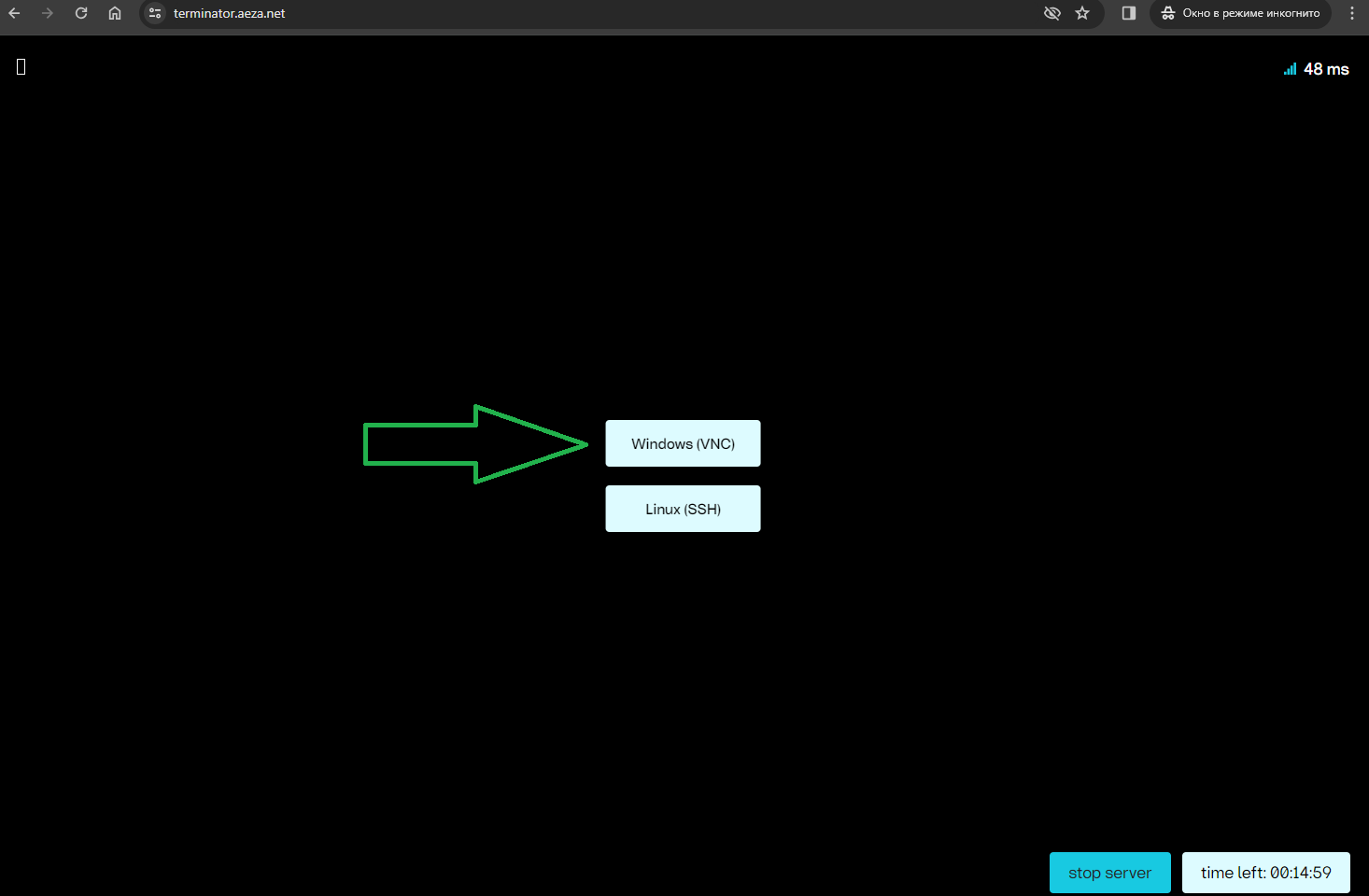
1.3. After a few seconds, the server will be ready and you will see the Windows Server remote desktop window. The system initially has a minimal set of necessary software preinstalled: the Notepad++ text editor, Google Chrome browser, and WinRAR archiver.
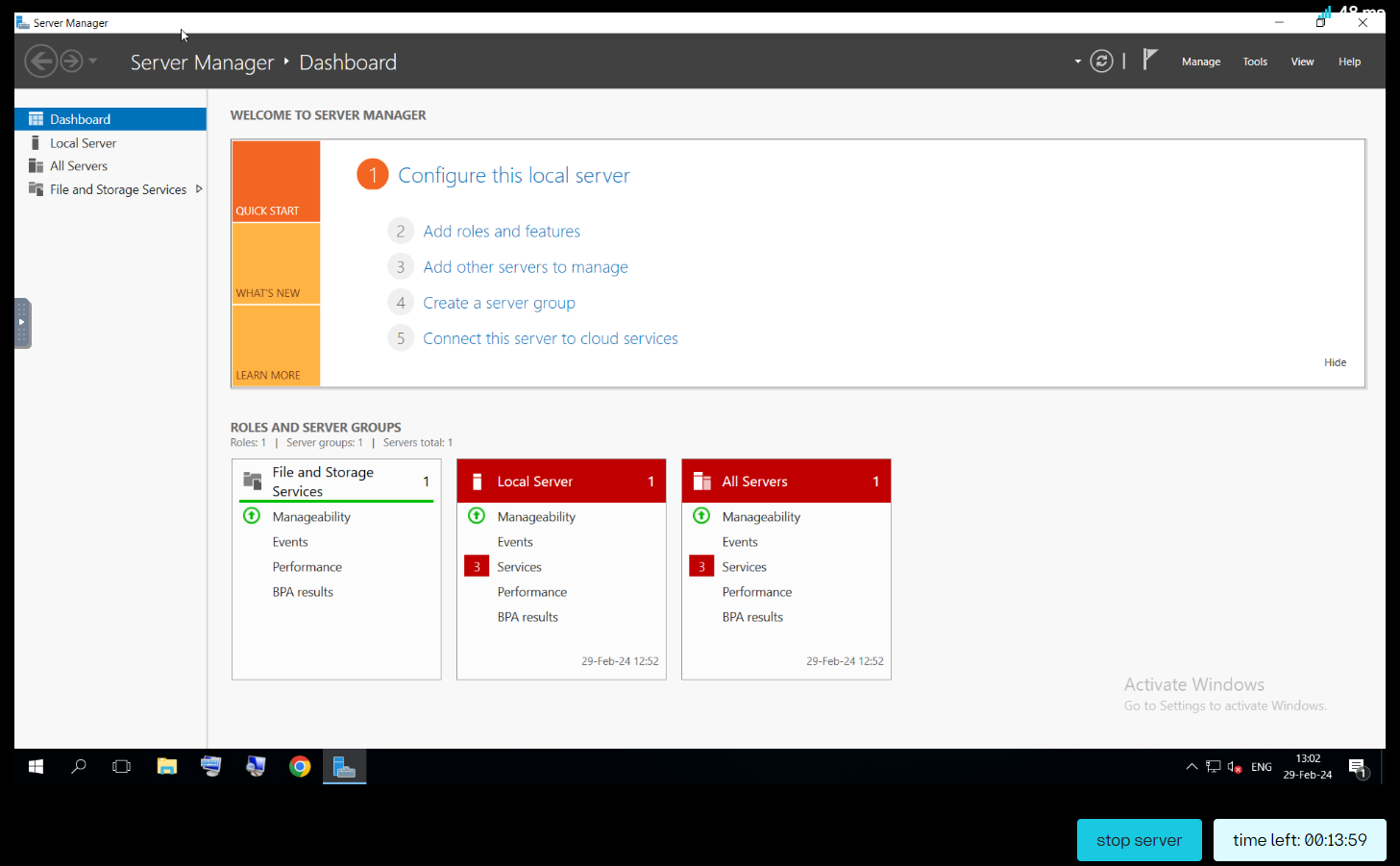
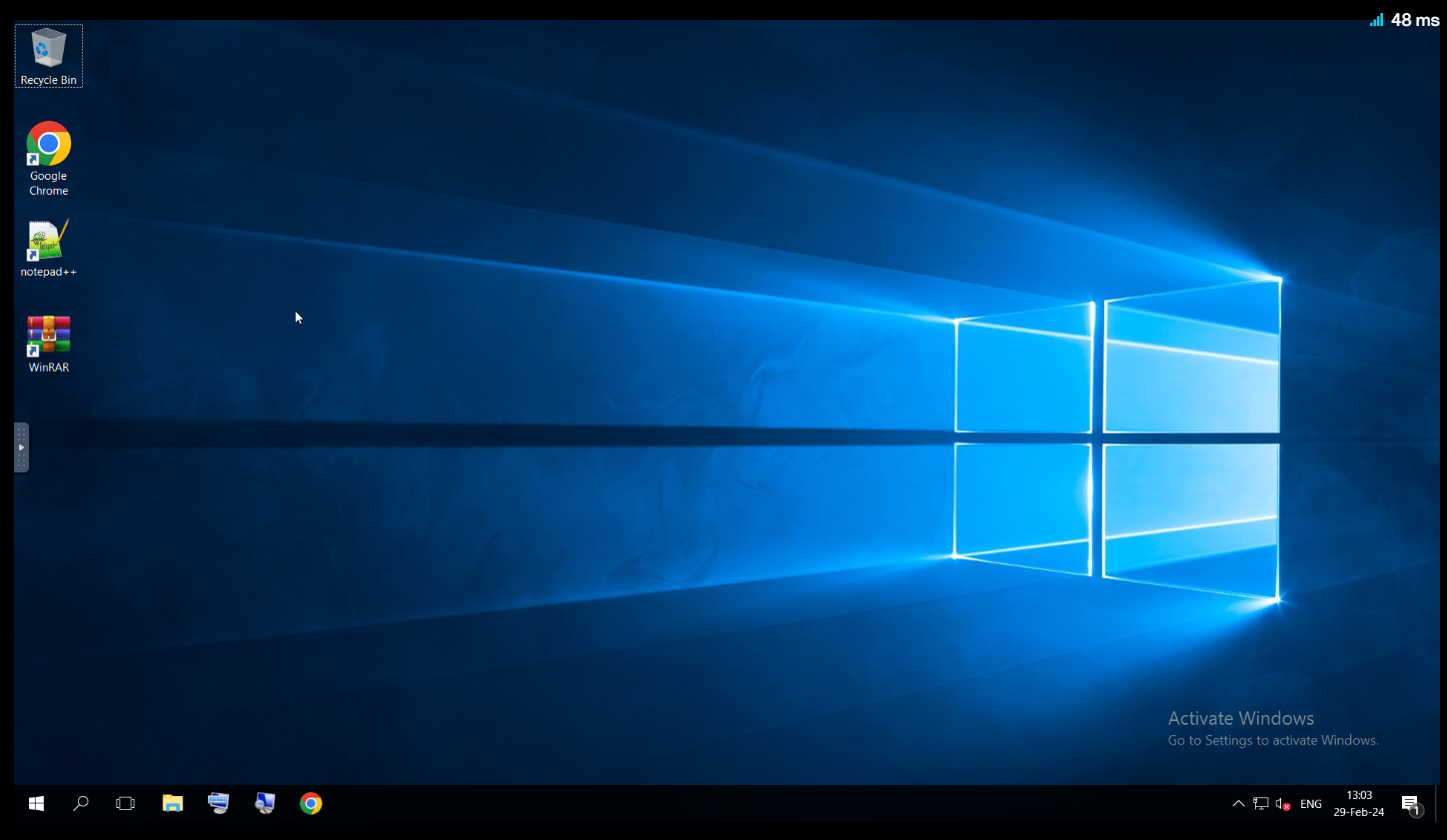
After these simple steps, you can perform any necessary actions on the server.
For example, open the browser and download the required file, or visit a specific resource.
Also note that to perform some actions you may need, for example, to send the Ctrl + Alt + Del key combination to the server. To do this, you can use the VNC toolbar by clicking the arrow icon on the edge of the screen.
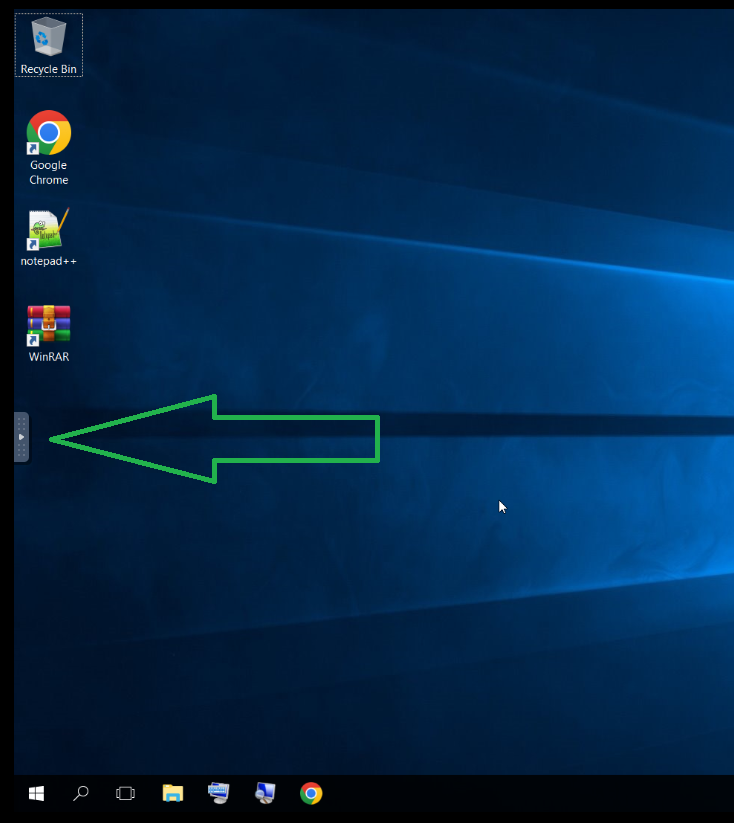
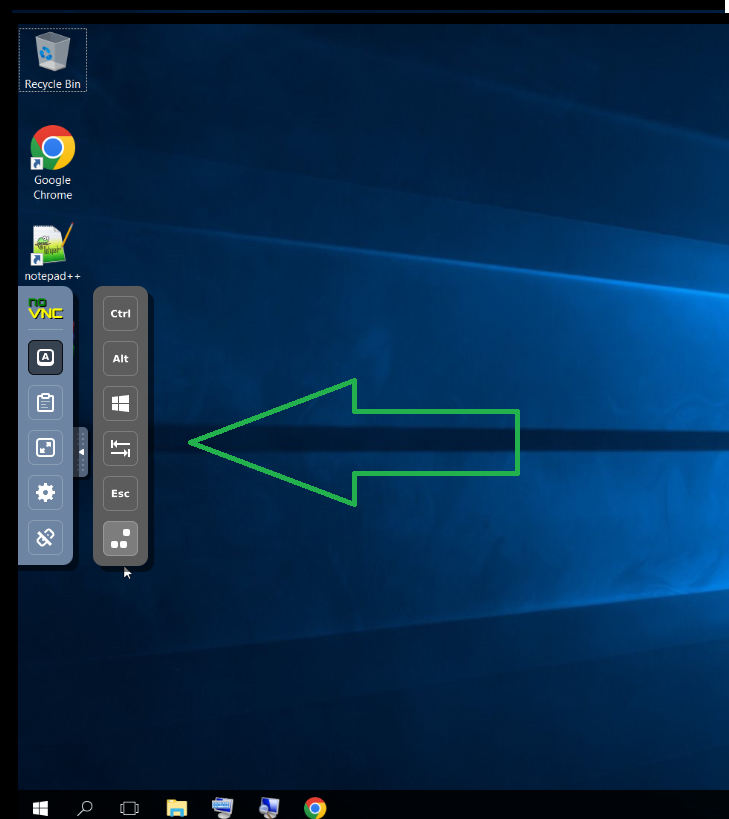
You can also open your server in full screen from this menu, change VNC settings, or shut down the server.
2. Example of using the test server on Linux OS.
1.1. First, open your browser and go to the link: terminator.aeza.net
1.2. After following the link, select Linux OS and complete the captcha.
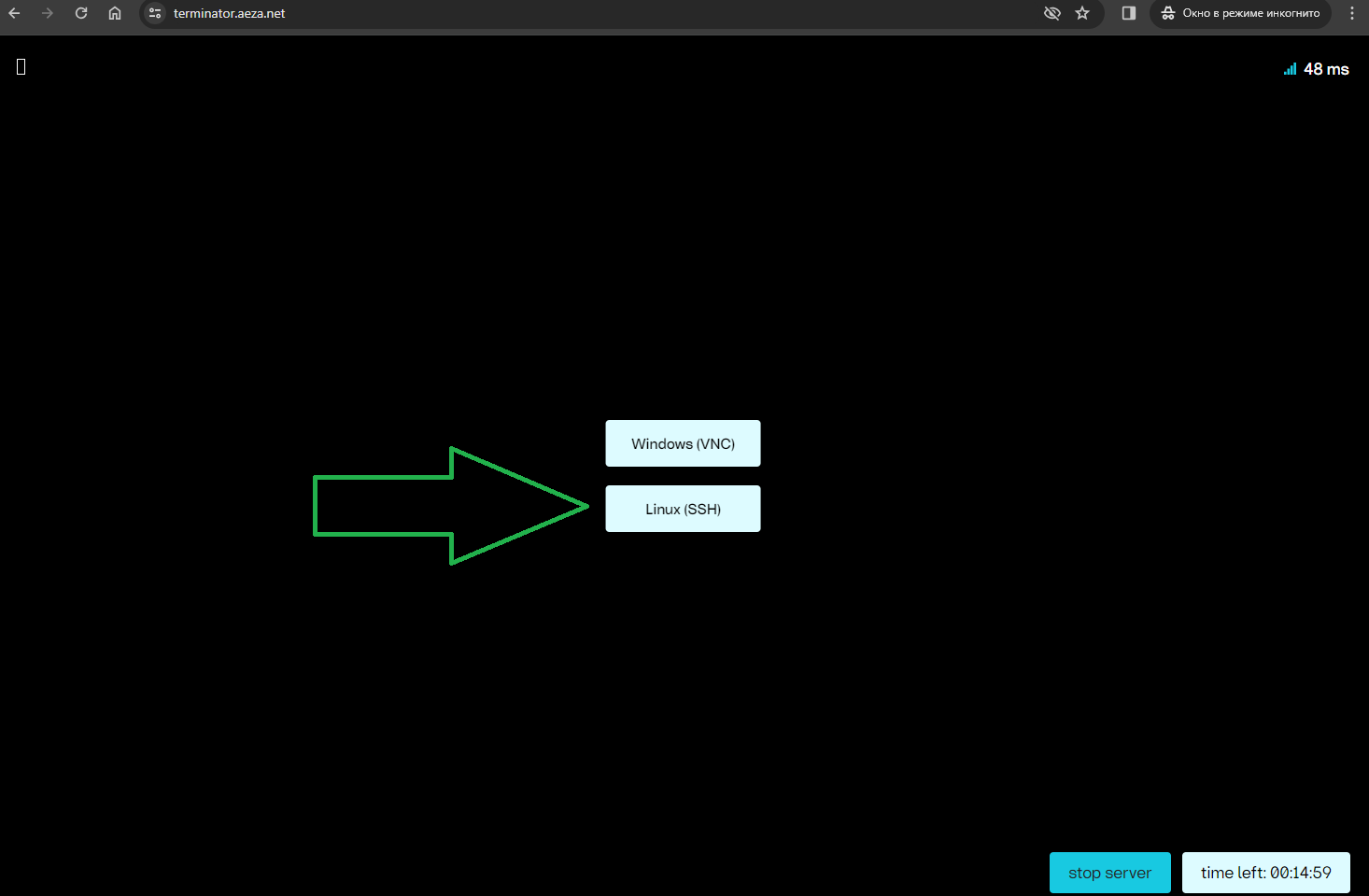
1.3. After selecting the OS, the server will be ready in a few seconds and you will see the Linux terminal window (Debian 12).
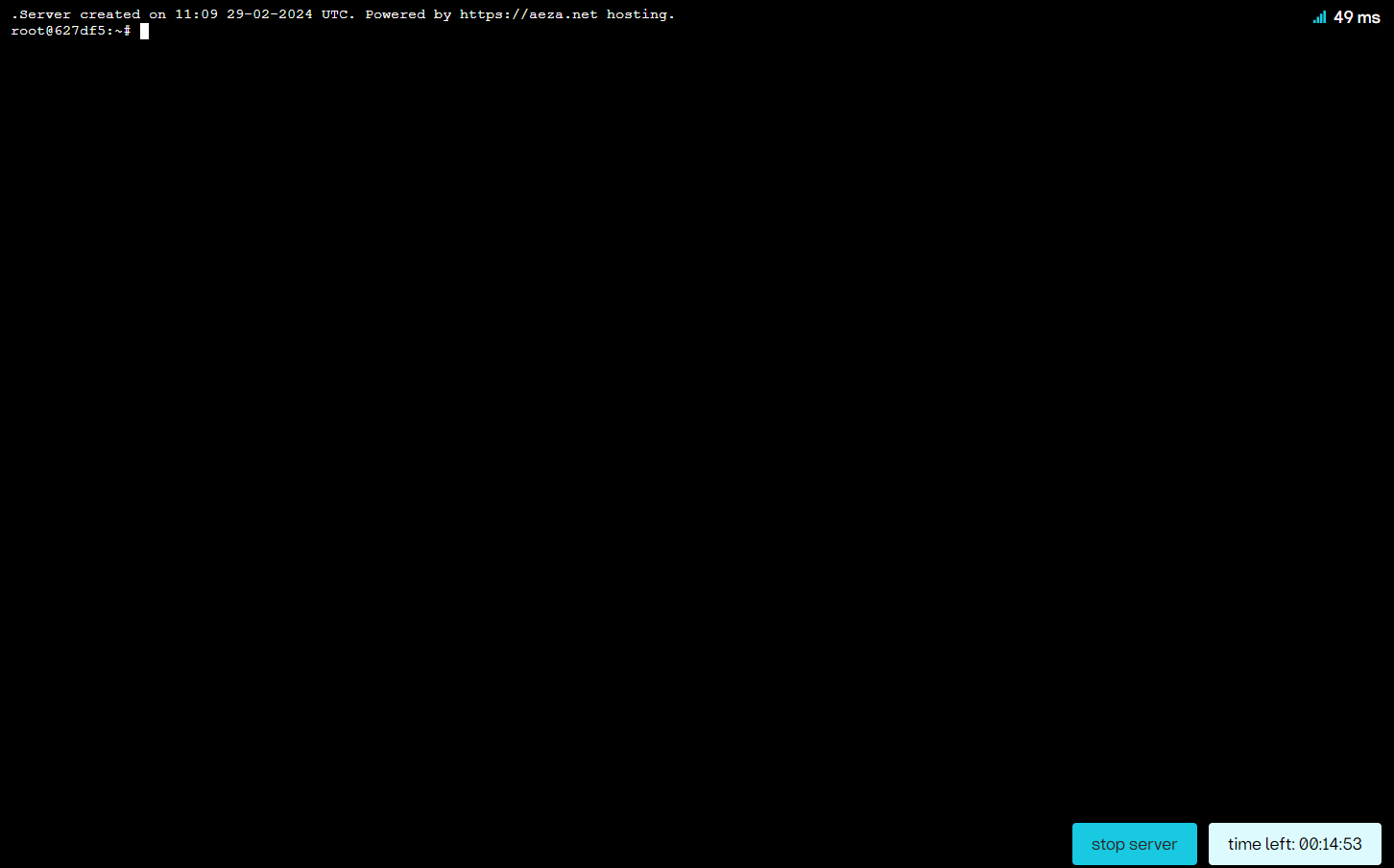
1.4. After completing these steps, you can interact with the server.
For example, download the files you need for testing or install software.
For instance, to download an archive with the speedtest-cli utility, you can use the wget command:
wget "https://install.speedtest.net/app/cli/ookla-speedtest-1.2.0-linux-x86_64.tgz"
Congratulations, you have familiarized yourself with examples of using the test server based on https://terminator.aeza.net/. Now you can use this test server for your required tasks within the Terms of Use.
Please note that the test server uses older hardware and has lower performance compared to the current virtual servers available for rent.
We recommend testing our virtual server services based on flagship processors, for example, on hourly plans — https://my.aeza.net/order/vps