
Network Configuration on Aéza VPS
This article explains and demonstrates how to set up the Internet on Aéza servers.
On VPS instances, networking is typically configured automatically via QEMU Guest Agent. However, there are non-standard cases where the agent is disabled or completely absent in the guest OS. This article explains how to manually configure or reconfigure the network on a VPS when the IP address is not updated automatically.
Ubuntu/Debian
First, you need to access the VNC console. You can do this from the service page in your personal account.
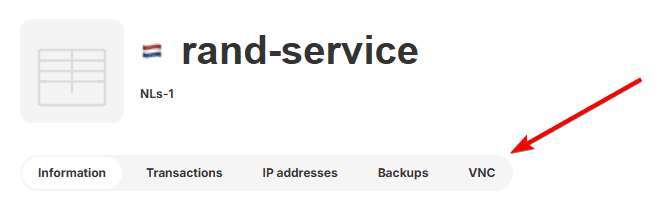
Log in as the root user. The password can be found on the "Information" tab of your service page, or you can use the "Paste Password" button.
In VNC, pasting works by clicking the button above the terminal window. Ctrl+V does not work.
If the password contains special characters, you must enter it manually.
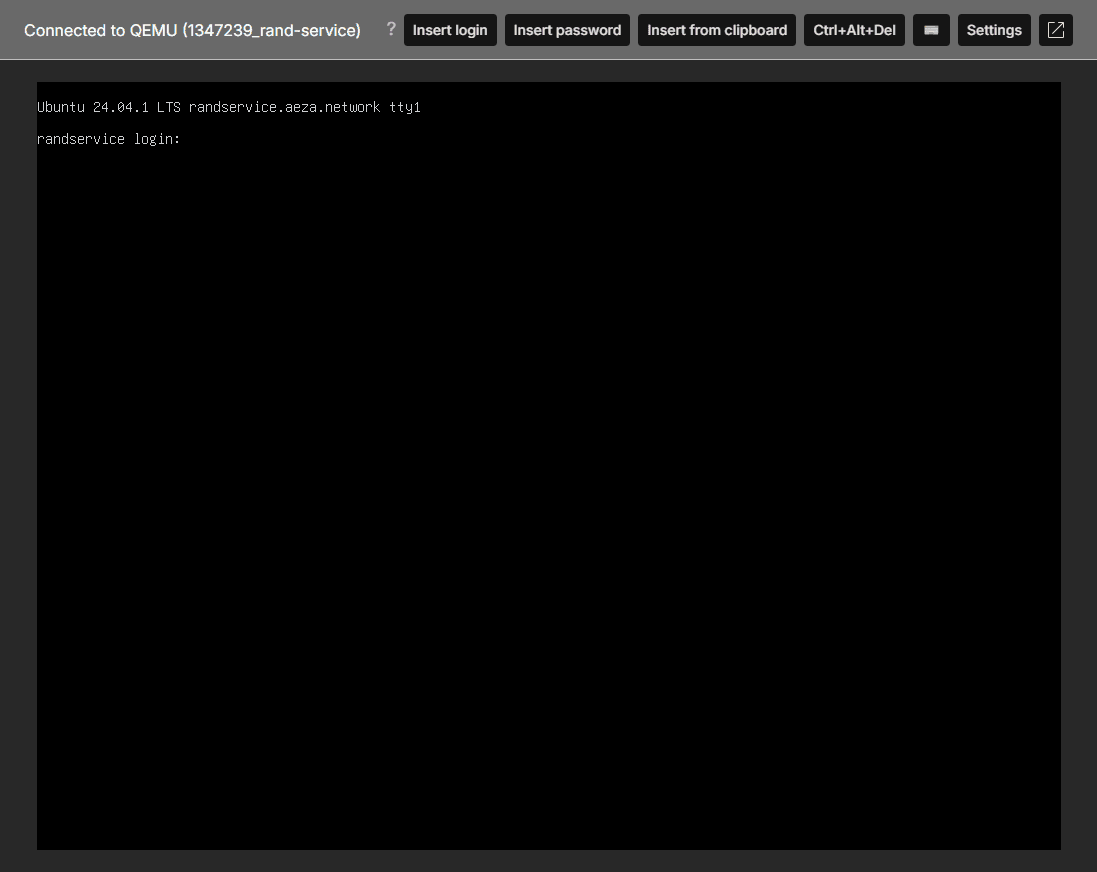
Open the file /etc/network/interfaces
nano /etc/network/interfaces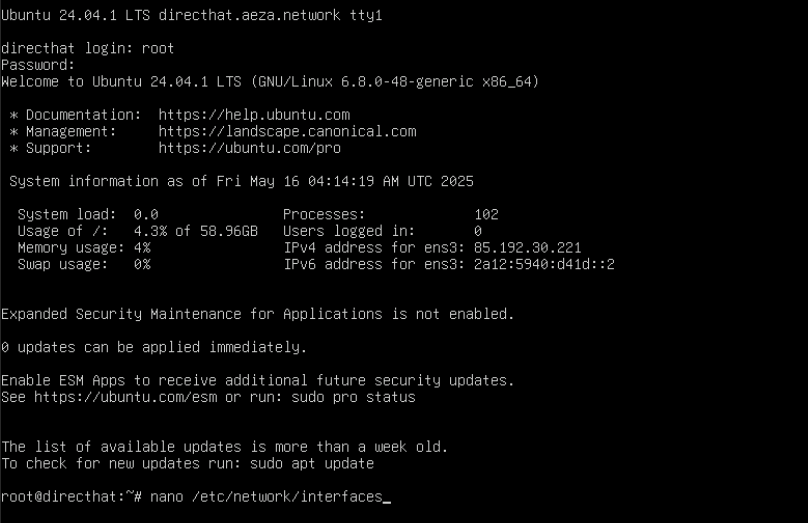
Replace the IPv4 address with the new IP.
Replace the IPv6 address and IPv6 gateway with the new ones (the standard address ends with ::2, any IPv6 gateway ends with ::1; only the subnet number needs to be changed).
You can find your IPv6 subnet on the "IP Addresses" tab of your service page.
 Old configuration
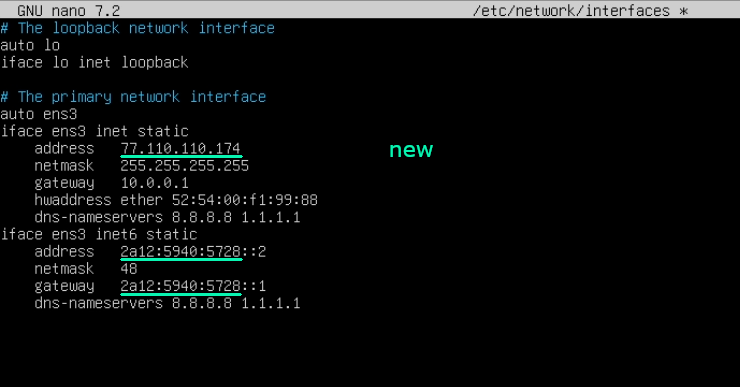 New configuration with current IP addresses
Save using the key combination Ctrl+O -> Enter
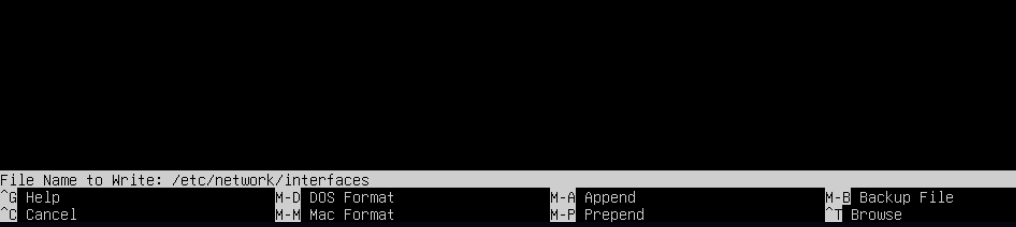
Close the file using the key combination Ctrl+X
Restart the systemd service to apply the changes:
systemctl restart networking.service
Log in as the root user again as in step 2.
Test the network connectivity.
mtr 1.1.1.1mtr ipv6.google.com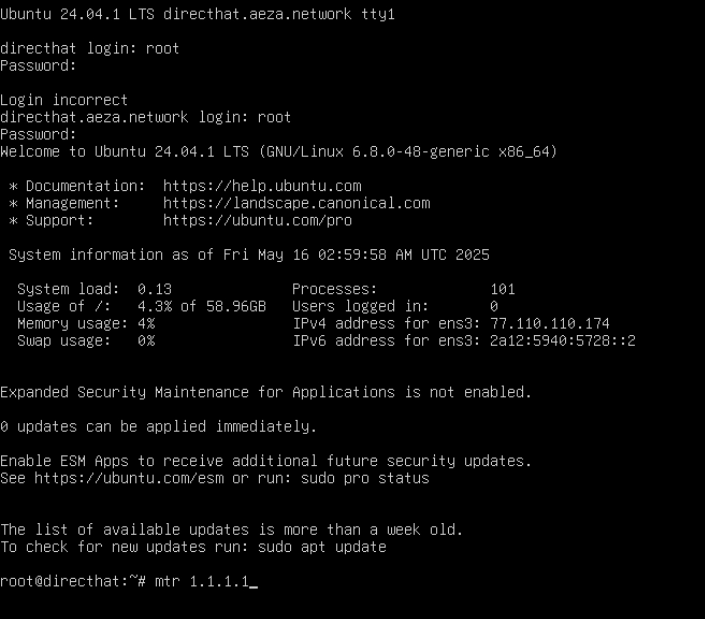
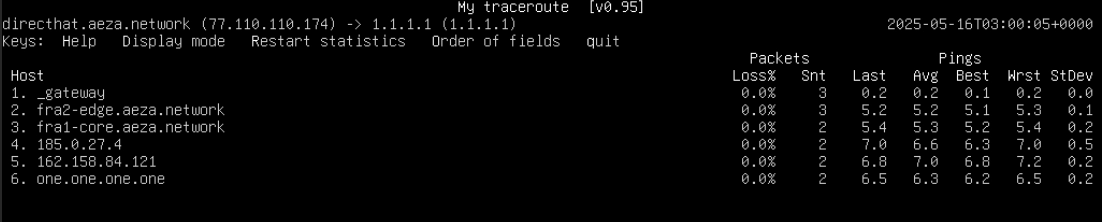
Done!
If the internet is still not working
Typically, in this case, the networking.service daemon restarts with an error:

To solve this problem, open /etc/network/interfaces:
nano /etc/network/interfacesReplace the line auto ens3 with allow-hotplug ens3
Before replacing the line:

After replacing the line:

Then return to step 5 above and continue with the same sequence.
Windows
First, you need to access the VNC console. You can do this from the service page in your personal account.
Log in as Administrator. The password can be found on the "Information" tab of your service page, or you can use the "Paste Password" button.
In VNC, pasting works by clicking the button above the terminal window. Ctrl+V does not work.
If the password contains special characters, you must enter it manually.
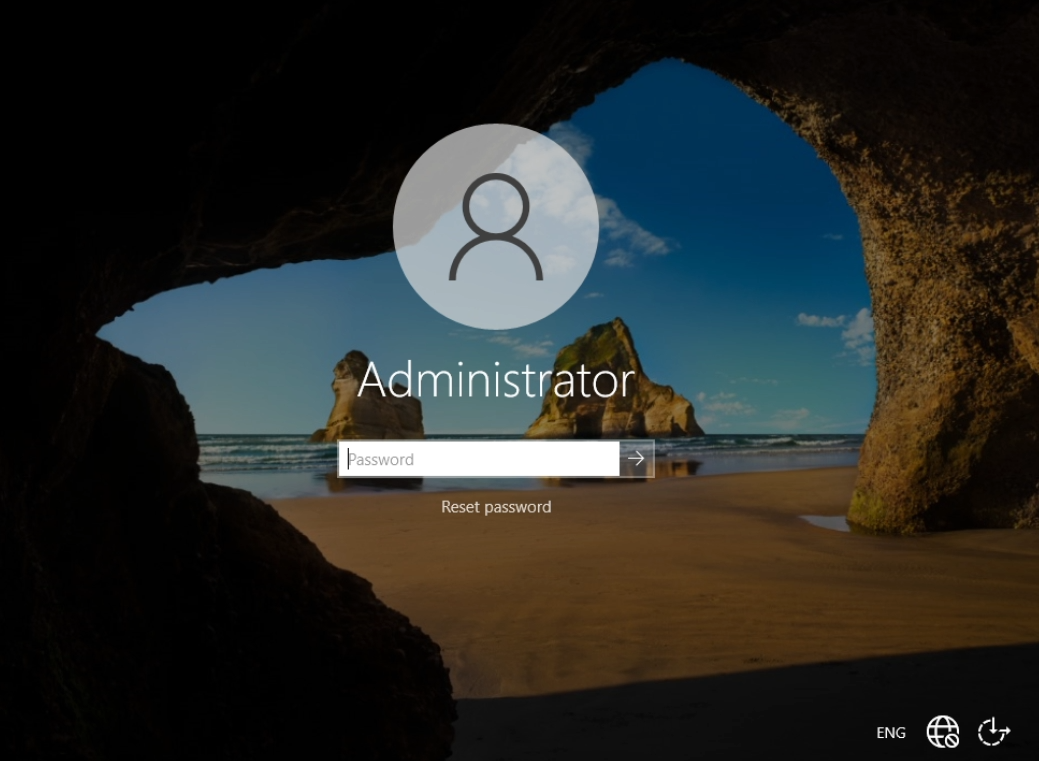
Open network settings.
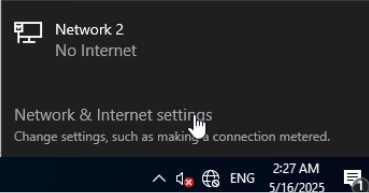
Open adapter settings.
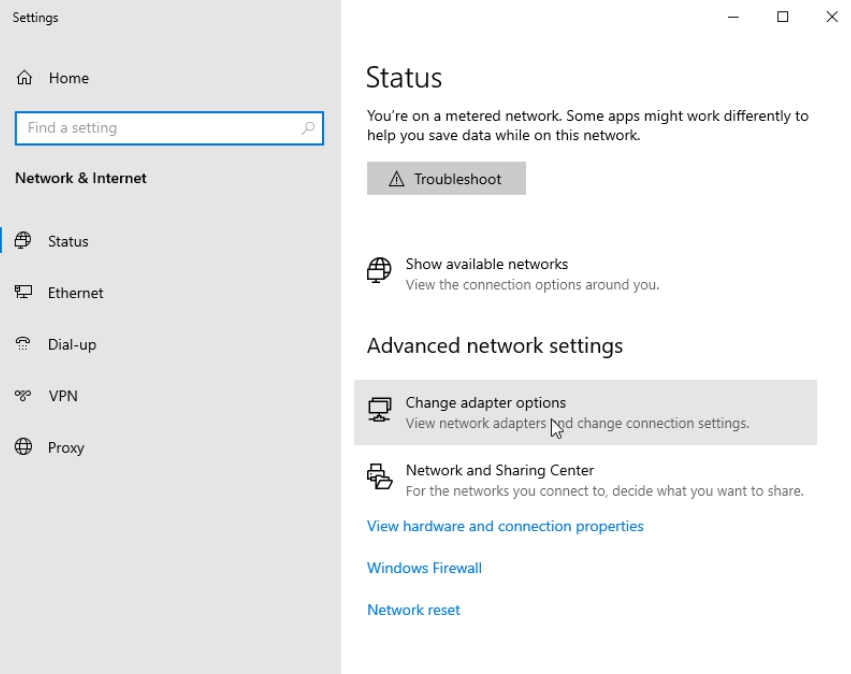
Properties.
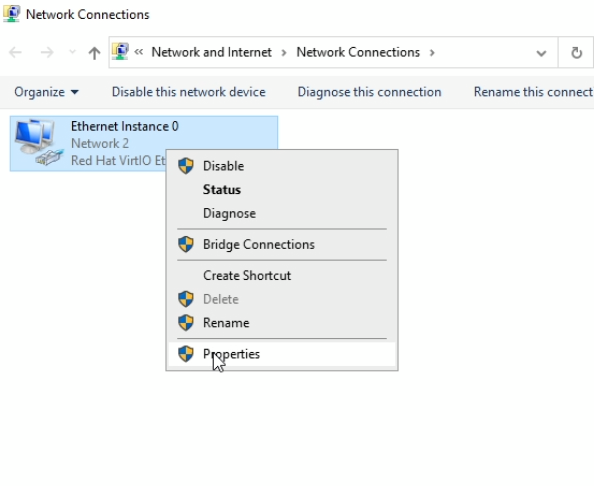
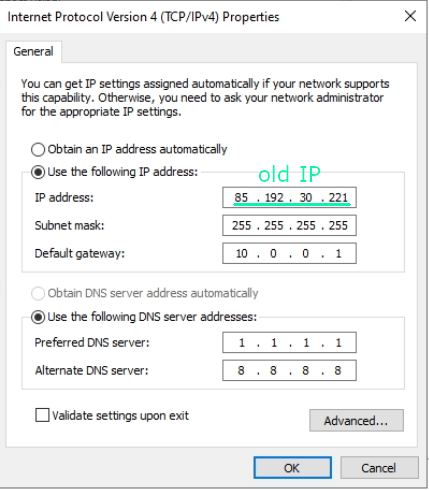
IPv4 settings.
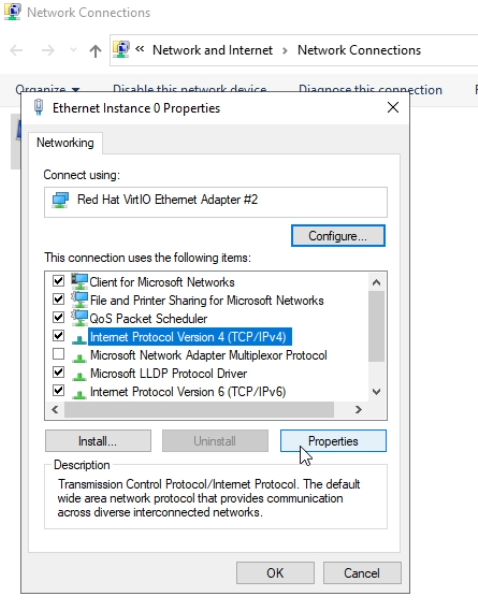
Replace the old IP address with the IP address of your new server.
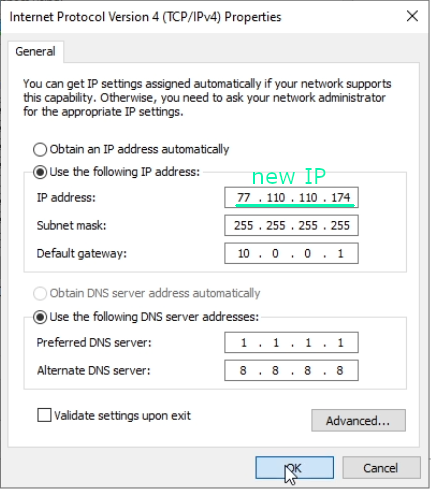
Save ("OK").
Close the window.
Done! Check your network connectivity.