
Transferring Disk Between VDS
Transfer between servers with the same disk size. Transfer from a server with a larger disk size to a server with a smaller disk size is not possible.
Copy the list of commands into a text editor (like Notepad):
# MOVE NEW SERVER TO RESCUE
# MOVE OLD SERVER TO RESCUE

# GO VNC

# NEW SERVER:

iptables -I INPUT 1 -p tcp --dport 22 -j ACCEPT; chpasswd <<<"root:aezasecretpass7725"

nmcli con mod "Wired connection 1" ipv4.addresses NEW_SERVER_IP/32 ipv4.gateway 10.0.0.1; nmcli con mod "Wired connection 1" ipv4.dns "1.1.1.1"

nmcli con mod "Wired connection 1" ipv4.method manual; nmcli con up "Wired connection 1"

# OLD SERVER:

nmcli con mod "Wired connection 1" ipv4.addresses OLD_SERVER_IP/32 ipv4.gateway 10.0.0.1; nmcli con mod "Wired connection 1" ipv4.dns "1.1.1.1"

nmcli con mod "Wired connection 1" ipv4.method manual; nmcli con up "Wired connection 1"

# YOU CAN'T INSERT “|” and “@” IN VNC. NEED TO CHANGE IT MANUAL

dd if=/dev/vda bs=10M conv=fsync status=progress | gzip -c -9 | ssh root@NEW_SERVER_IP 'gzip -d | dd of=/dev/vda bs=10M'

# ENTER PASSWORD

# WAIT

# MOVE NEW SERVER OUT OF RESCUE MODE

# LOGIN WITH OLD PASSWORD via VNC

# CHANGE SERVER'S IP ADDRESS IN OS SETTINGS

# FINAL: CHECK CONNECTION
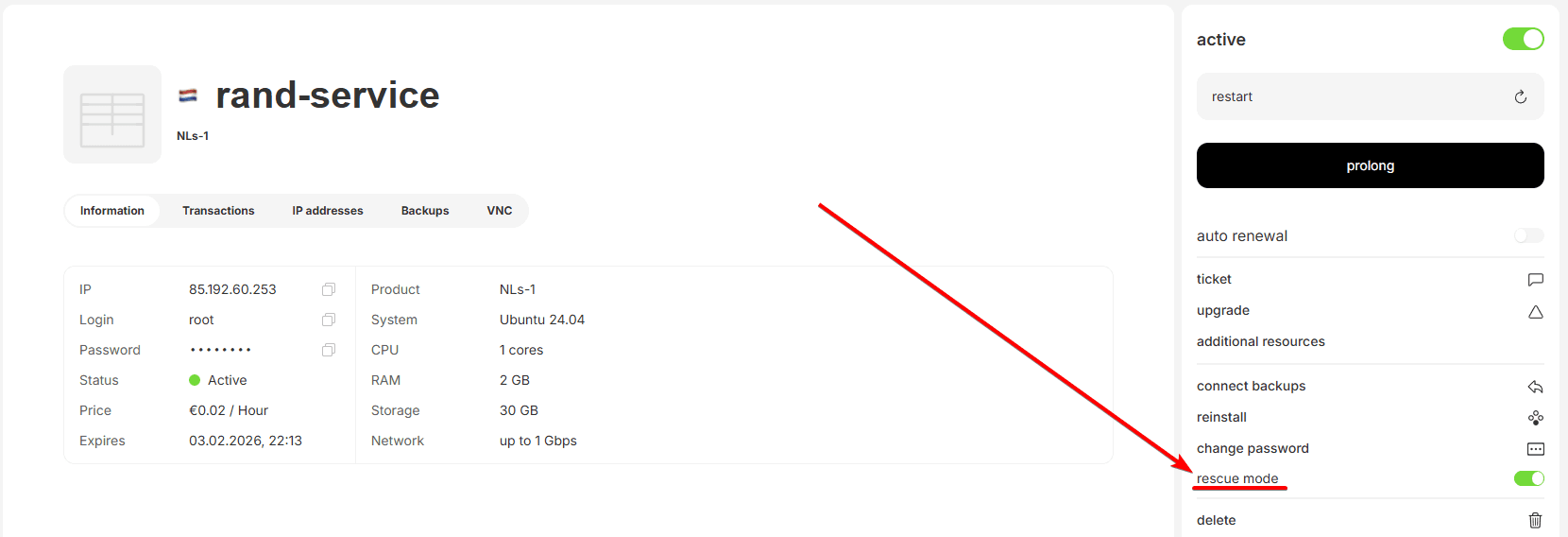
Switch both servers (old and new) to Rescue Mode:
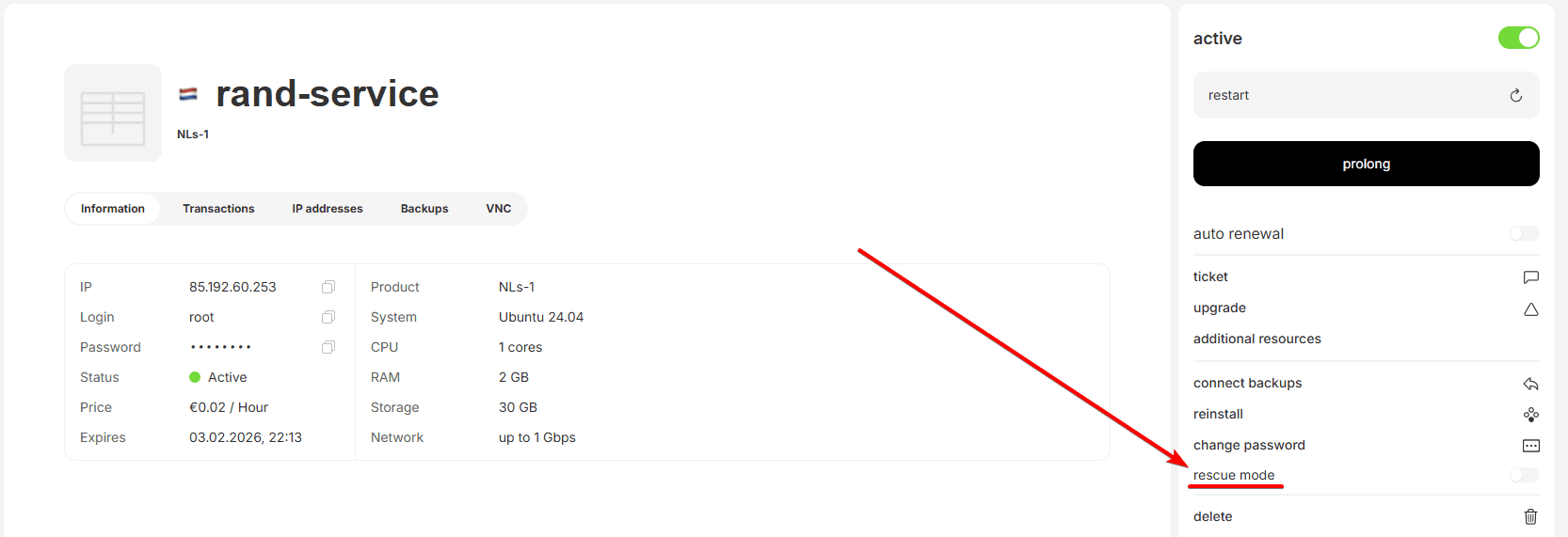 Switching to Rescue Mode
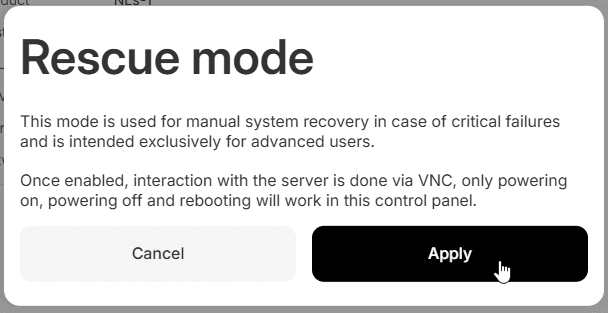 Confirmation
Customize the commands:
- Replace OLD_SERVER_IP with the IP address of the old server,
- Replace NEW_SERVER_IP with the IP address of the new server,
- Replace the default password with the new server's password (for security).
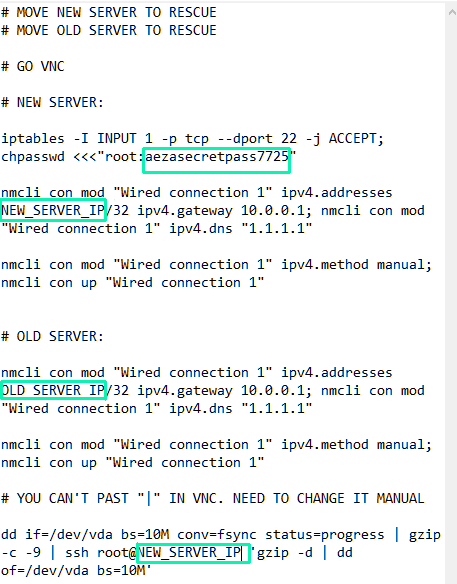 Original file
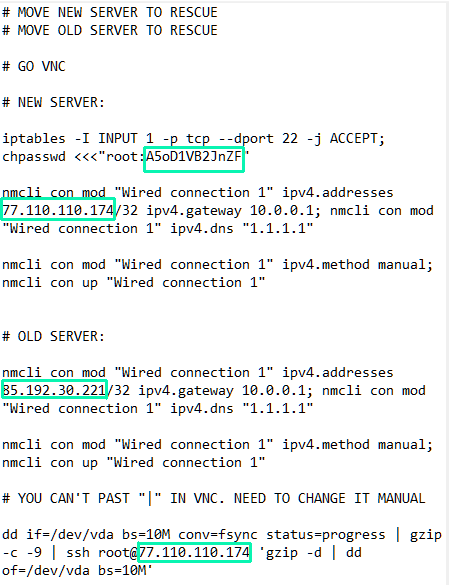 File after editing
Access the new server via VNC.
In VNC, paste using the button above the terminal window, Ctrl+V does not work.
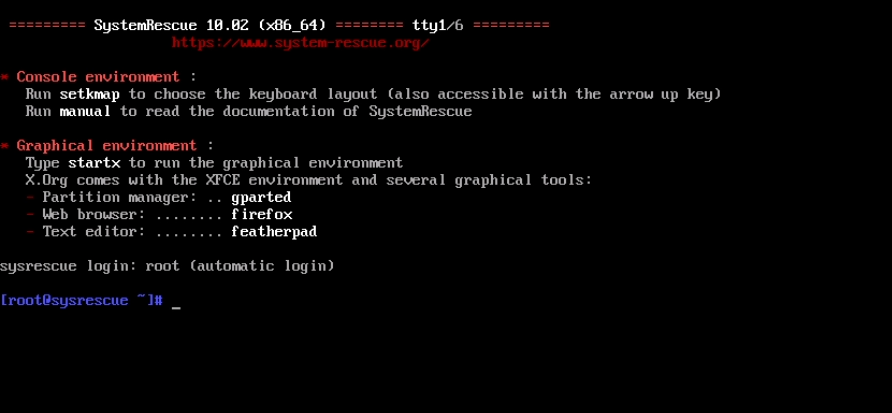
Paste the commands one by one (commands should be modified as per step 3):
iptables -I INPUT 1 -p tcp --dport 22 -j ACCEPT; chpasswd <<<"root:aezasecretpass7725"
nmcli con mod "Wired connection 1" ipv4.addresses NEW_SERVER_IP/32 ipv4.gateway 10.0.0.1; nmcli con mod "Wired connection 1" ipv4.dns "1.1.1.1"
nmcli con mod "Wired connection 1" ipv4.method manual; nmcli con up "Wired connection 1"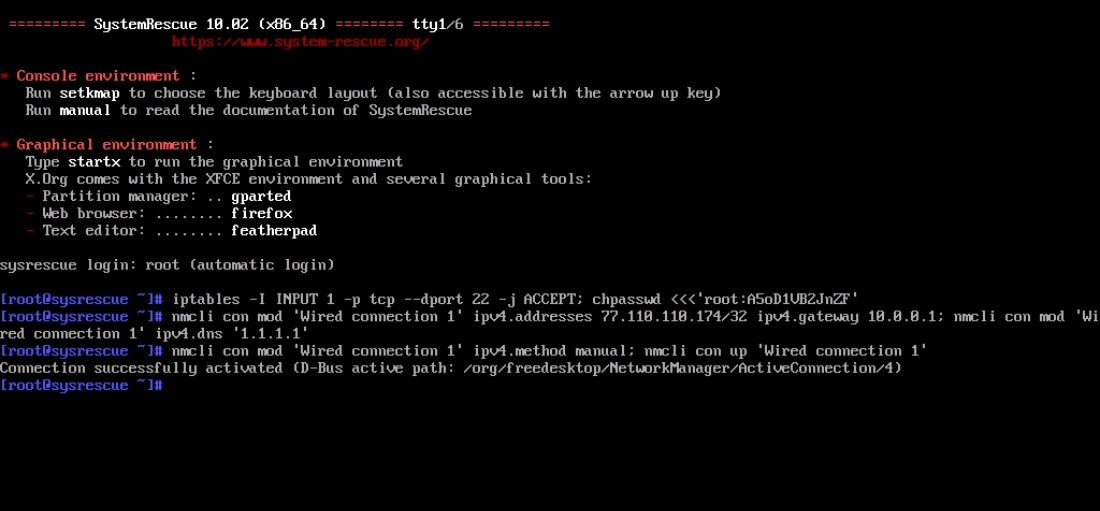 Network and SSH configured on the new server.
Access the old server via VNC.
Paste the commands one by one (commands should be modified as per step 3):
nmcli con mod "Wired connection 1" ipv4.addresses OLD_SERVER_IP/32 ipv4.gateway 10.0.0.1; nmcli con mod "Wired connection 1" ipv4.dns "1.1.1.1"

nmcli con mod "Wired connection 1" ipv4.method manual; nmcli con up "Wired connection 1"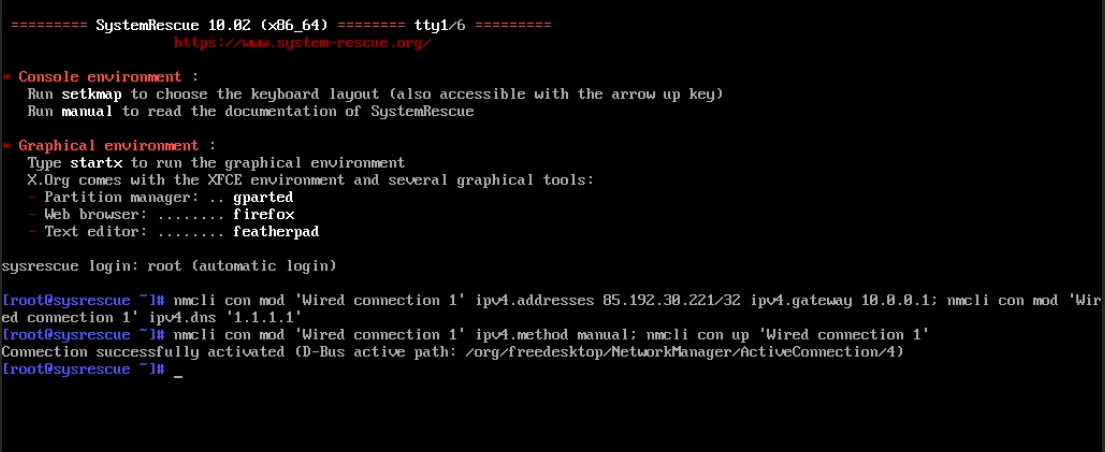
Paste the command (the IP address should be modified as per step 3):
dd if=/dev/vda bs=10M conv=fsync status=progress | gzip -c -9 | ssh root@NEW_SERVER_IP 'gzip -d | dd of=/dev/vda bs=10M'Using arrow keys and Del/Backspace, edit the command. In this case, the characters “@” and “|” may have been pasted incorrectly (e.g., as “2” and “\”), they must be replaced with the correct ones.
 Initially
 How it should be
Press Enter.
Type yes and press Enter.
Paste the password you set in step 2 ( A5oD1V2BJnZF in the example, you should use your own password).
The password is not visible when pasting, simply paste it and press Enter.

If everything is done correctly, wait for the disk image transfer to complete. This process must not be interrupted, otherwise incorrect data will be written.
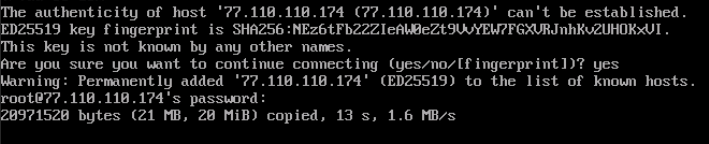
When the process finishes, a notification will appear in the terminal. Transfer speed is approximately 50 gigabytes per hour, about 30 minutes for the first tariff or up to 10 hours for the fifth tariff (depends on the actual occupied disk space).

Take the new server out of Rescue Mode.
Done. The disk from your old server has been copied to the new one, all data is fully transferred from the old server: password, network settings, application settings, etc.
For further use, you need to configure the network to use the new IP address. You can do this by following this guide: http://wiki.aeza.net/en/guides/setting-network/
Disabling password authentication
If you are already using SSH keys, then you should definitely disable the ability to connect to the server via password.
Downloading files on Windows Server
Surely many have encountered the problem that the standard installed Internet Explorer browser on Windows Server does not allow downloading the desired file, let's fix it!