Two-factor authentication
Want to secure your data, servers and services? It's time to enable two-factor login in your Aéza account.
What is two-factor authentication?
Two-factor authentication is a system that requires two separate authorization barriers (logins) to access an account. Examples of such a system include a password and an additional SMS code in Google accounts, a password and seed phrase in crypto wallets, a password and a key-generating flash drive in large companies, and the traditional password and Google Authenticator, which generates login keys on your phone.
How to enable two-factor login?
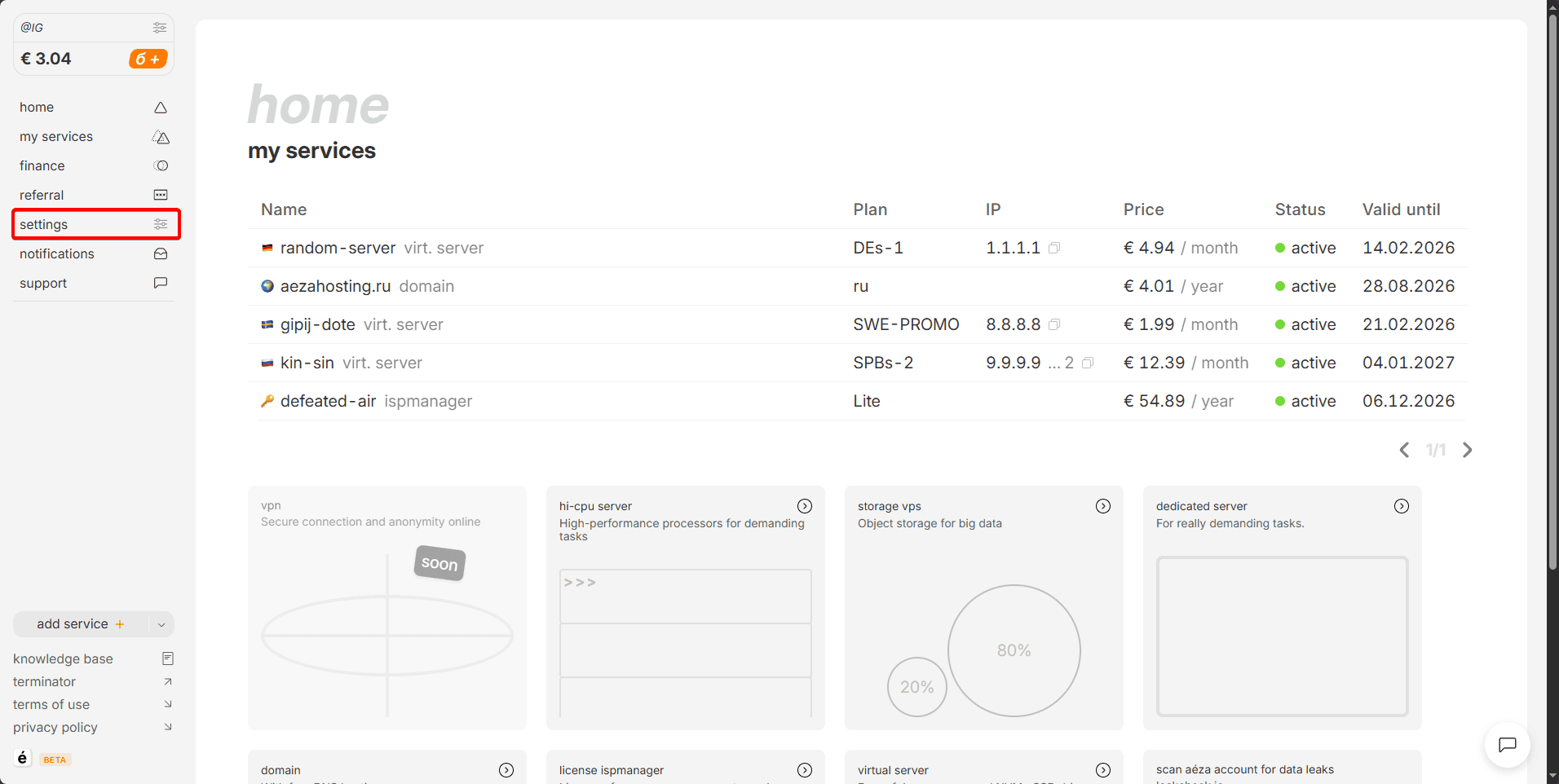
To do this, let's go to the personal cabinet and click on the settings section.
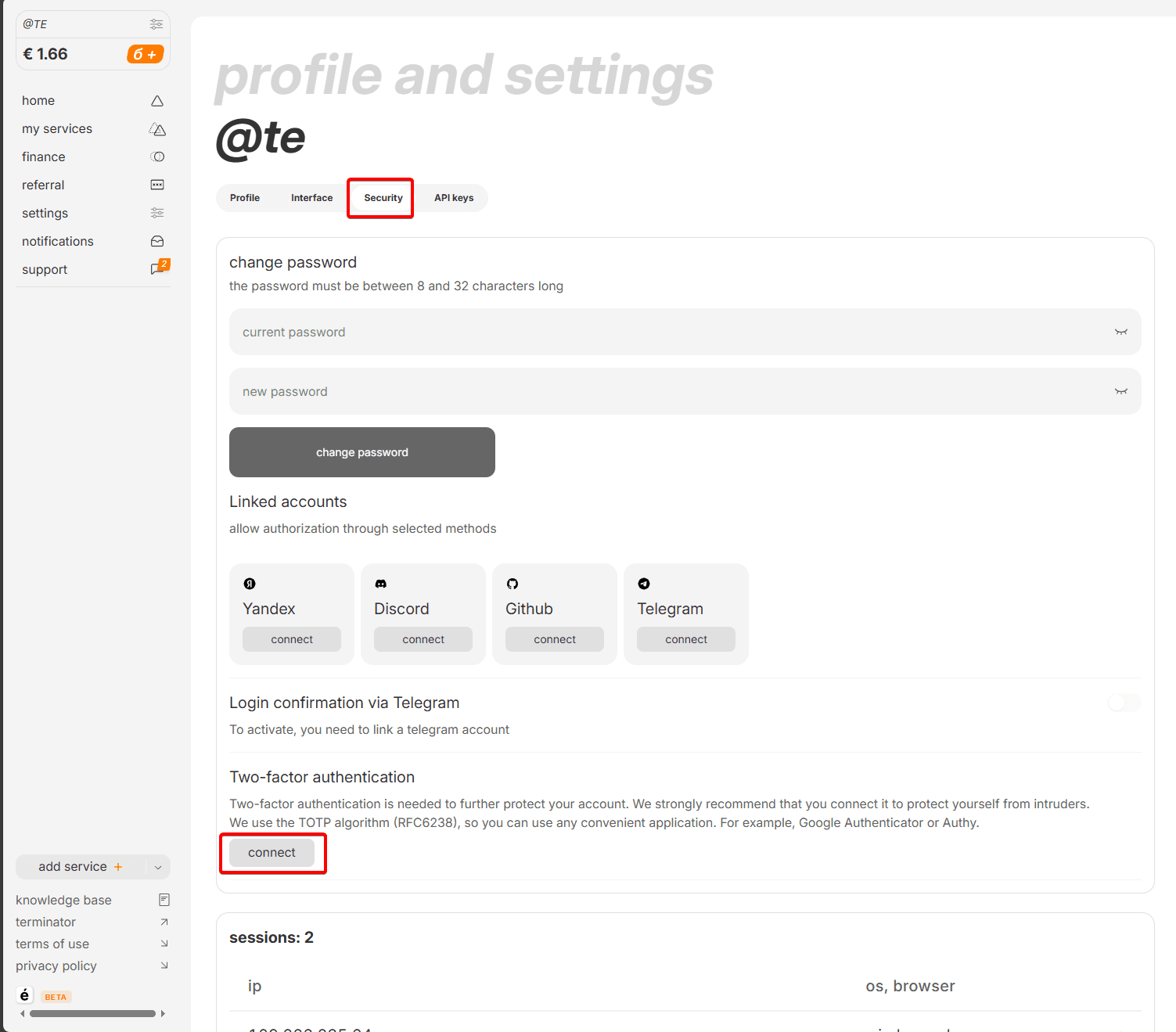
In it, select the security section and scroll down to two-factor authentication, click the "Connect" button.
Then download Google Authenticator from Google Play or App Store and scan the QR code from the website in the application.
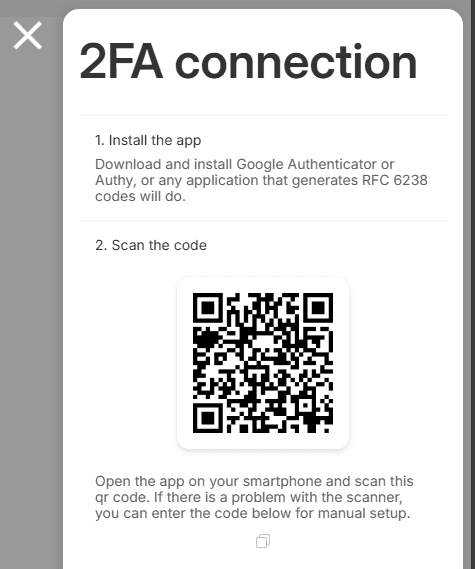
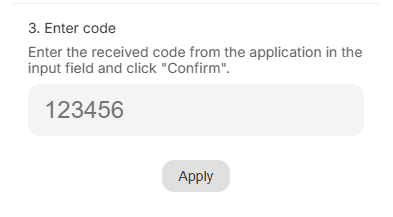
Enter the 6-digit login code received in the application. And confirm the 2FA connection.
Congratulations, now your account is securely protected! Every time you log in, you will need to enter a new code generated in the application on your phone.
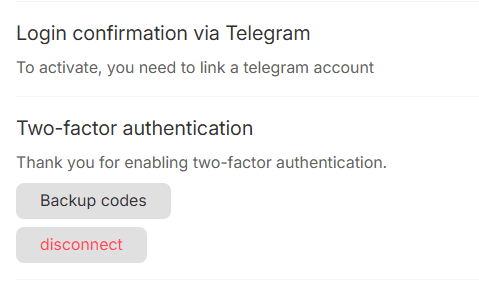
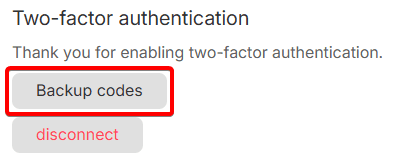
Getting backup codes
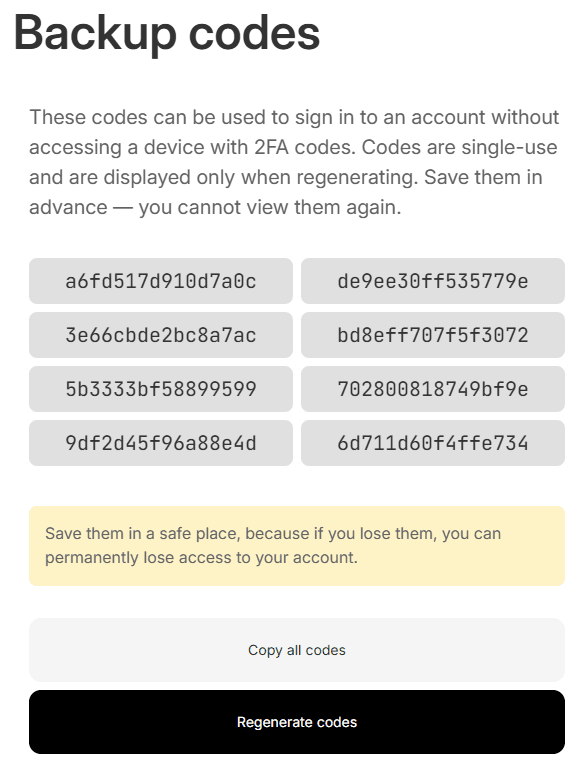
To avoid losing access to your account in case of losing your phone with the code generator or deleting the application, you can additionally create backup access codes.
Backup codes work indefinitely and do not require updates. However, each of these codes can only be used to log in once.
After using the codes, you can regenerate them in this section.
We recommend writing these codes on a piece of paper or saving them on any offline medium (camera, flash drive, disk, or teaching them to a talking parrot). This will ensure that no one can learn them through the internet.
Example of backup codes. They are unique for each account
Setting up two-factor login via Telegram
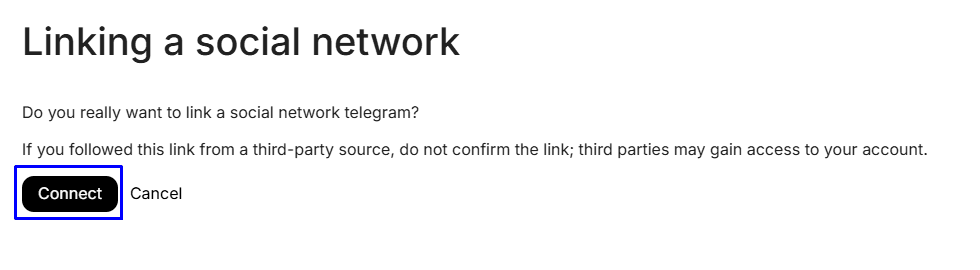
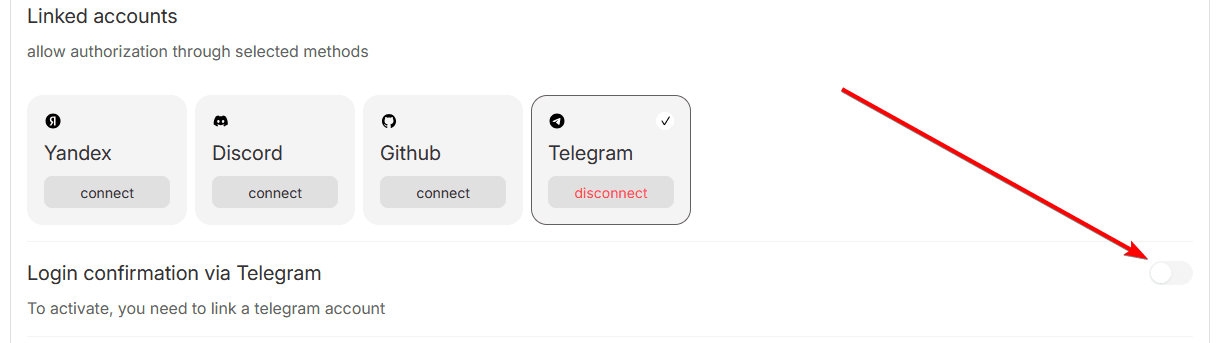
For convenience, you can also set up two-factor login generation through your Telegram account. In this case, we will send a login code to your Telegram. Let's go up and connect the Telegram account with the "Connect" button.
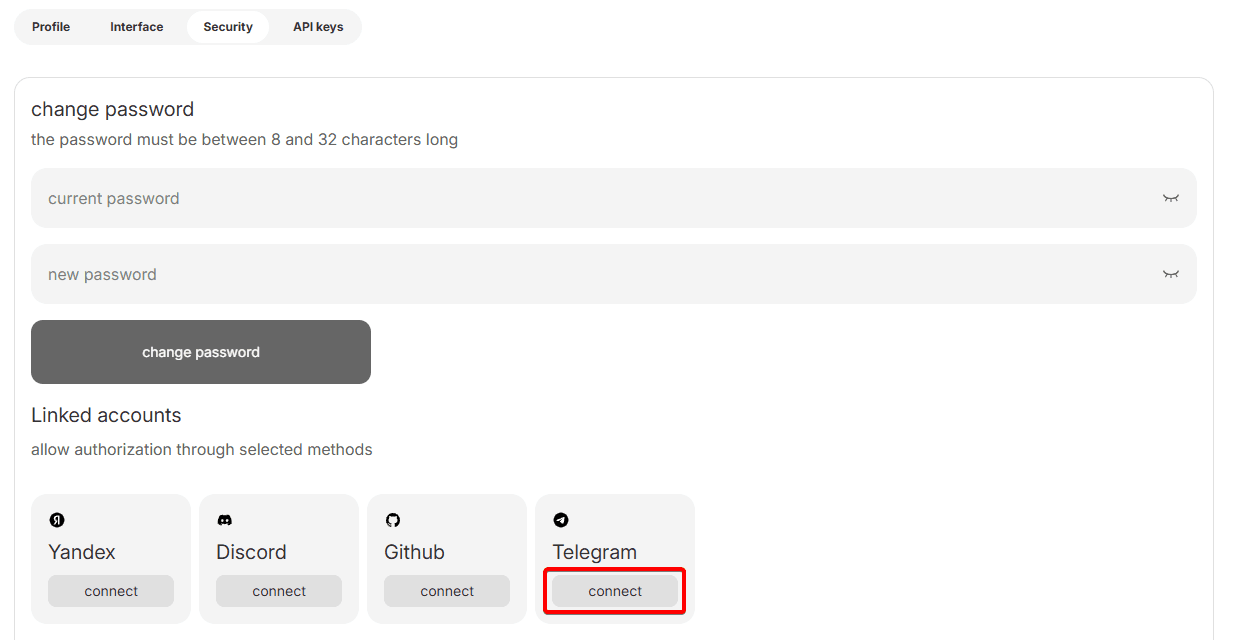
Click the "Send Message" button on the Telegram redirect page.
In the opened chat with the bot, click the "Start" button.

Then the "Continue" button.
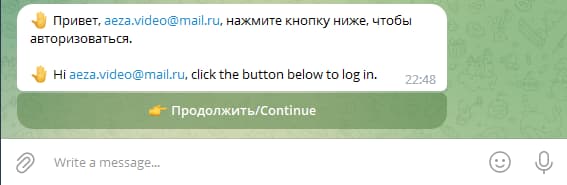
Congratulations, now your Telegram account is connected and available for login confirmation. The checkbox for login confirmation via Telegram will be enabled automatically. You can independently enable or disable this function in the security section.
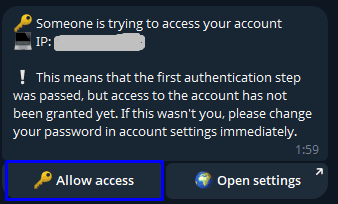
When logging into your account, you can still either enter the code from the Google Authenticator app or click the button in the Telegram bot and confirm your login with one click.